


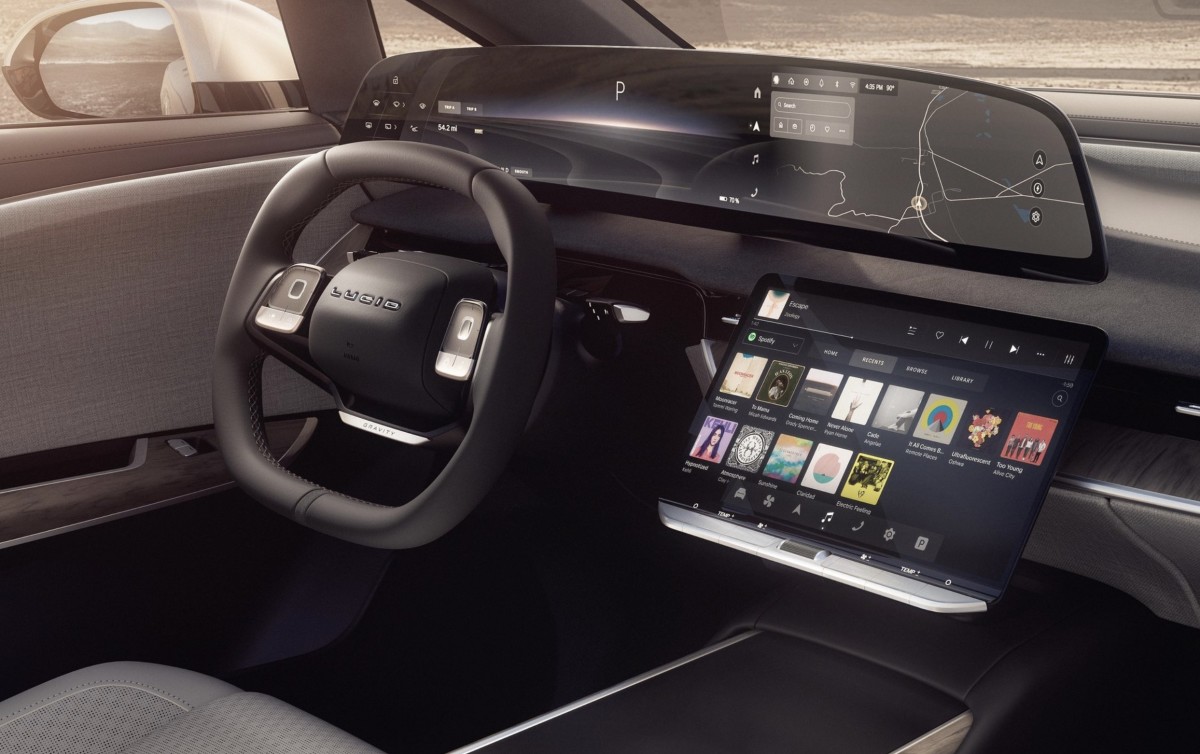
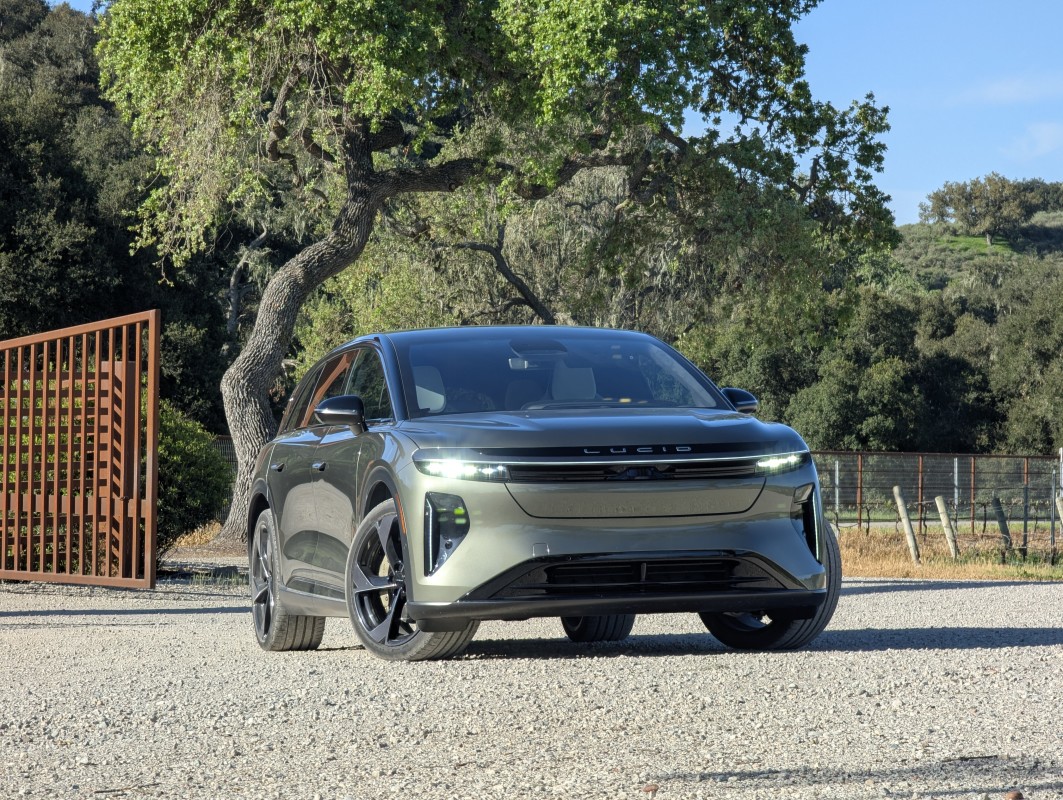
Two years after the Lucid Air electric sedan received support for Apple CarPlay and Android Auto, the same update is underway for the EV maker’s Gravity SUV. For years, Apple CarPlay and Android Auto integrations have made moving from one vehicle to the next much simpler for drivers, especially since different vehicles have vastly different native infotainment systems. Lucid UX 3.5, the latest software version for the Gravity, now includes these smartphone-mirroring functions in North America.
Lucid UX 3.5 Arrives This Week
Lucid
The new software update began rolling out to Lucid owners this week, on March 12. A complimentary over-the-air update, UX 3.5 won't cost owners anything.
"Apple CarPlay and Android Auto are two of the most sought-after features by our customers," said Emad Dlala, SVP of Engineering and Software at Lucid. "We are now providing a seamless connection between mobile devices and the Lucid Gravity. We're excited to introduce these features to Lucid Gravity, which now offers even greater comfort and convenience for owners."
Gabriel Ionica
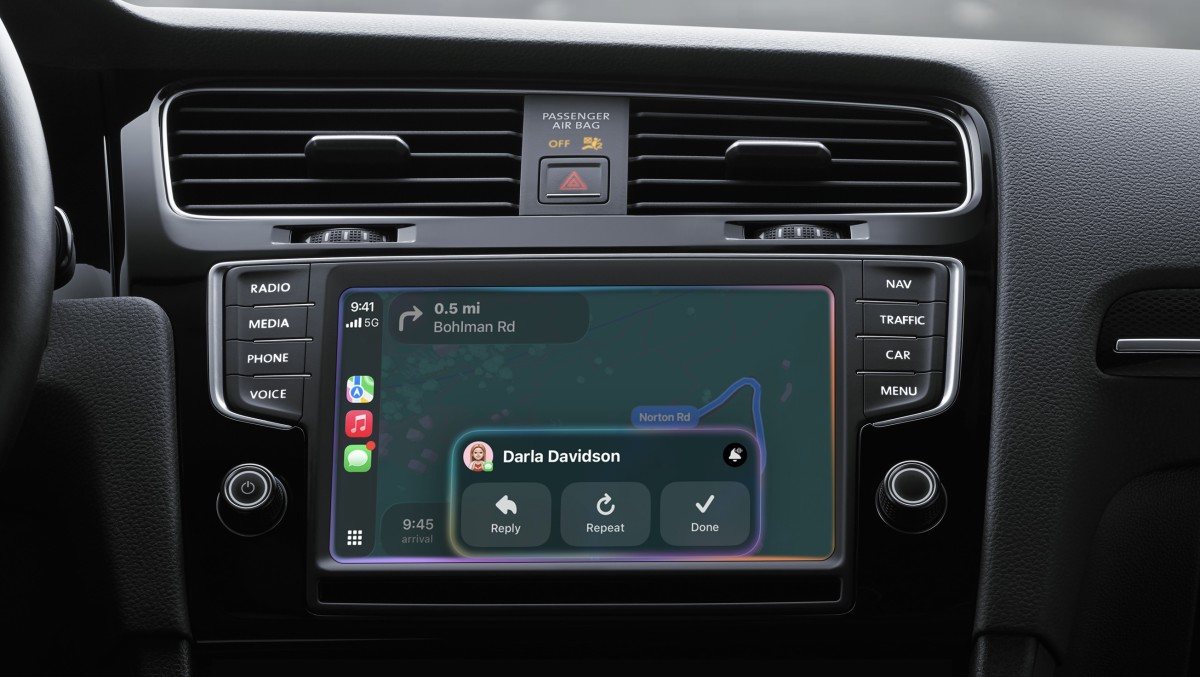
Both Apple CarPlay and Android Auto can be connected wirelessly or via USB in the Gravity. Visible on the Clearview Cockpit display, owners will now be able to mirror their smartphone devices, providing easy access to features like music apps, messaging, smartphone maps, and other media.
The new update gives Lucid an edge over Tesla, which still doesn’t offer Apple CarPlay or Android Auto in its vehicles. Tesla announced plans last year to integrate Apple CarPlay, but we’re almost through the first quarter of 2026 and it hasn’t happened yet.
Related: Why Tesla Still Doesn’t Offer Apple CarPlay in 2026
Why Apple CarPlay/Android Auto Integration is So Hard
Apple
As cars become more reliant on software, a tug-of-war has developed between automakers and Big Tech over who controls the digital ecosystem in modern vehicles. Many automakers are trying to find a balance between the two, which is why Apple’s more comprehensive CarPlay Ultra has been widely rejected by car manufacturers.
For Lucid specifically, the delayed integration of CarPlay and Android Auto was likely linked to the automaker struggling with persistent software issues. Many Lucid fans have experienced glitchy infotainment systems, whereby updates couldn’t be installed or audio would be cut out. In the Air sedan, CarPlay sometimes switched devices on its own. Introducing new smartphone integrations before the company had stabilized its software may only have led to an even poorer user experience.
It’s too early to tell if Lucid has ironed out these kinks with UX 3.5, but the company is well aware of the issues it has had, going so far as to replace much of its software leadership team recently. With cheaper midsize Lucid EVs coming and expected to sell in much higher volumes than the Air and Gravity, it’s essential for the EV maker to fix tech-related glitches before then.


There are no reviews to display.