


Elon Musk says his company's misleadingly named Full Self-Driving (Supervised) suite of driver aids only needs cameras to work properly, not radar sensors, a stance that many disagree with. But as straightforward as cameras may be, Tesla has made an error with one of its simplest, triggering a recall with the National Highway Traffic Safety Administration. Like many other vehicles over the past year, every Tesla model except the Cybertruck has been recalled because of a glitch in their software that stops the rearview camera from operating for up to 11 seconds—longer than most backup maneuvers last. As a result, as many as 218,868 vehicles face an increased risk of a crash.
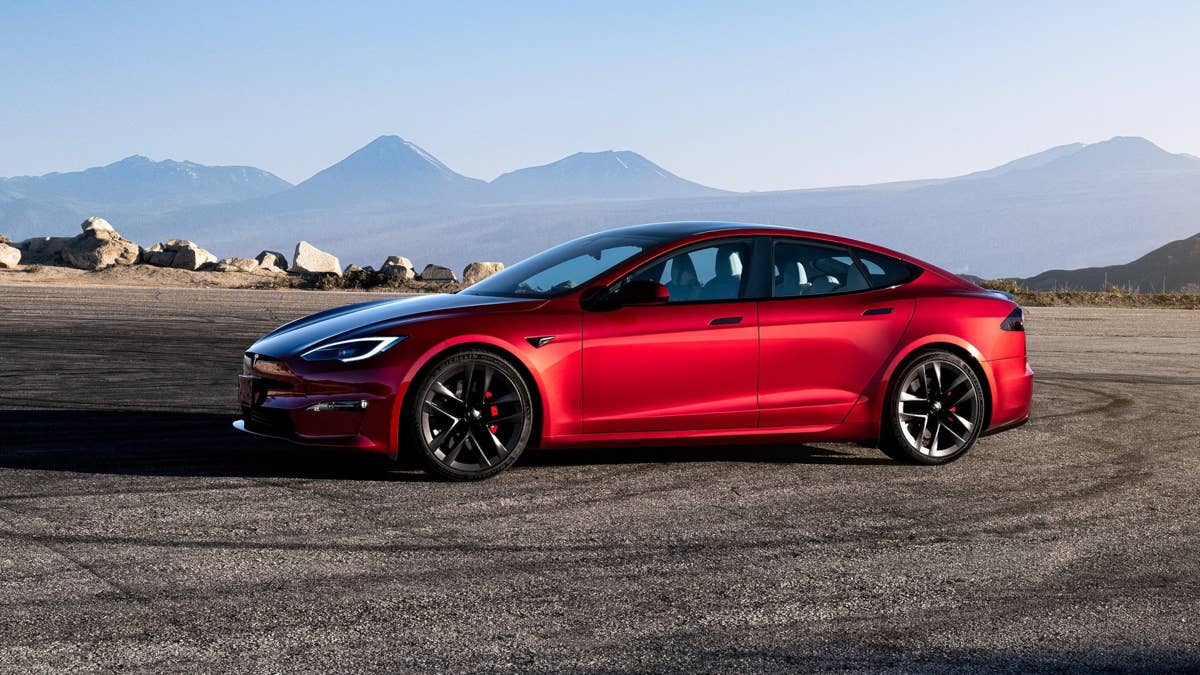
Tesla Recalls Older Versions of Every Model Before the Cybertruck
Tesla
The Cybertruck entered production in November 2023, and it's unaffected by this recall, but several other vehicles produced before then have been named:
- 2017, 2021-2023 Tesla Model 3
- 2021-2023 Tesla Model S
- 2021-2023 Tesla Model X
- 2020-2023 Tesla Model Y
According to the NHTSA recall report, affected vehicles have hardware version 3 and operating software version 2026.8.6. A certain configuration of this software could prevent camera streams from being sent to the Media Control Unit (MCU) for up to 11 seconds. In plain English, their rearview camera imagery may be delayed when the vehicles are placed in reverse, making them noncompliant with Federal Motor Vehicle Safety Standard #111 for rear visibility. Of course, drivers could wait the 11 seconds for the image to appear, but time is money, and people try to avoid wasting either, so most will rely on their mirrors and looking over their shoulders until the issue is resolved.
Related: Tesla Rolls Out 5 Super Model Y Lease Deals This May
The problem was first brought to the attention of Tesla Firmware Engineering teams on April 10 of this year, and they reacted by stopping the deployment of firmware version 2026.8.6 to vehicles. The following day, an update (2026.8.6.1) was sent to some affected vehicles over the air. Over the course of the rest of April, Tesla analyzed data to determine which vehicles may still be suffering from the issue, deciding to issue a recall on April 27. As of May 1, Tesla is aware of 27 warranty claims and two field reports that may be related to the issue, but no collisions, fatalities, or injuries have been reported as a result of this problem.
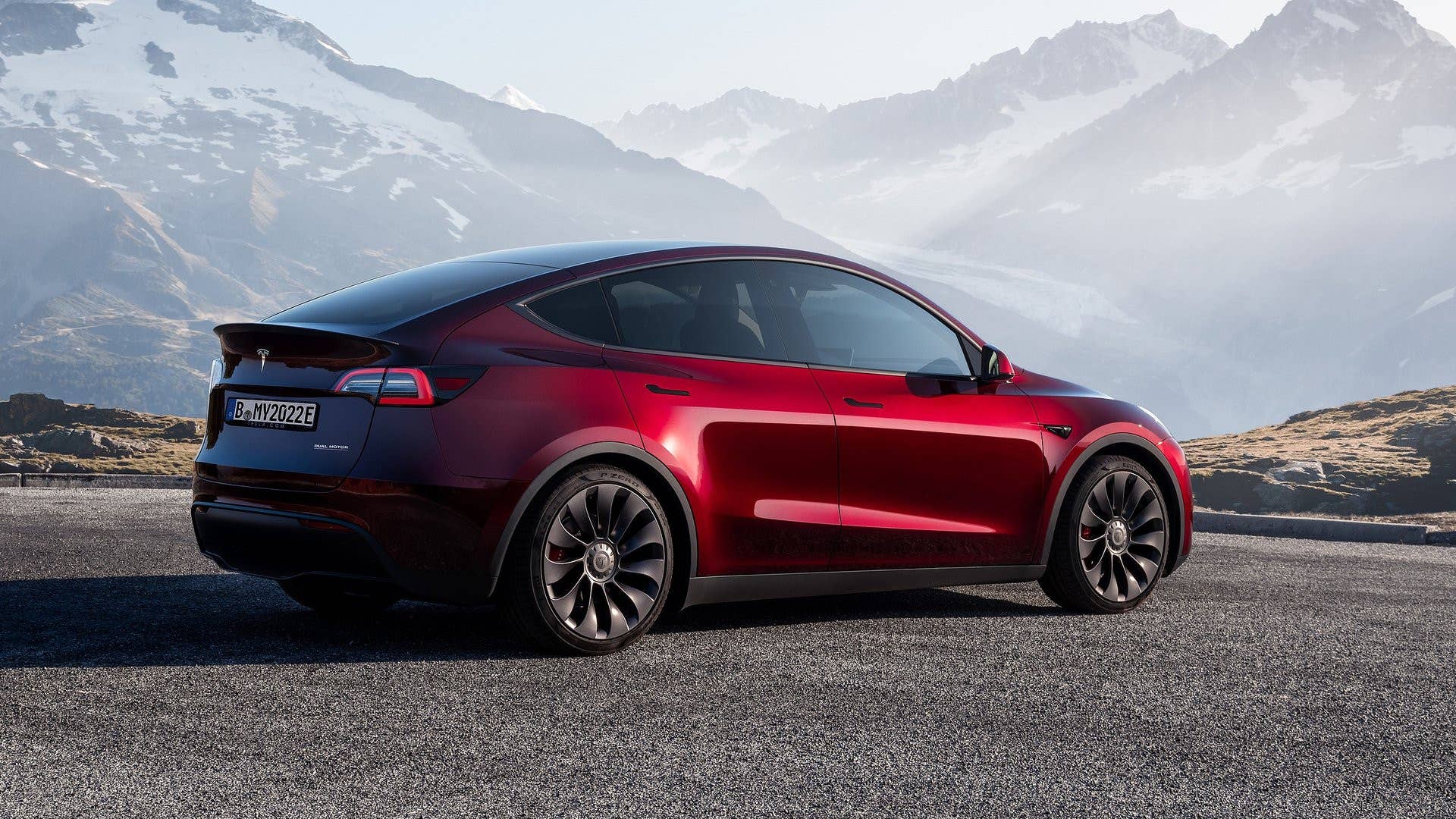
How Tesla Is Fixing Faulty Rearview Cameras
Tesla
Tesla began fixing the issue via over-the-air software updates on April 11, and it believes that more than 99.92 percent of the affected vehicles have already been updated with the remedy firmware. However, the planned remedy notification for owners will only take place on July 3, for some reason. Although the faulty software is relatively new and was released this year, it doesn't affect newer Tesla vehicles because the problem has only been found in vehicles with hardware version 3, which Tesla stopped producing on January 3, 2024. If your Tesla is still being glitchy when selecting reverse, check that all updates have been installed; a visit to a Tesla store shouldn't be necessary.


There are no reviews to display.