


Software Still Defines the Tesla Ownership Experience
Tesla was the brand that made over-the-air software updates a real part of owning a car. Other automakers might push out more frequent patches these days, but Tesla’s updates still stand out for actually changing how the car feels to use every day.
In line with that, the Spring Update 2026 is one of Tesla’s most packed seasonal releases so far, rolling out a dozen meaningful changes in one go. Holiday updates usually bring in new frameworks, while Spring updates focus on refining and expanding what’s already there. This one is all about making existing features work better and feel easier to use.
— Tesla (@Tesla) April 13, 2026
Updates Rolling Out to Every Tesla
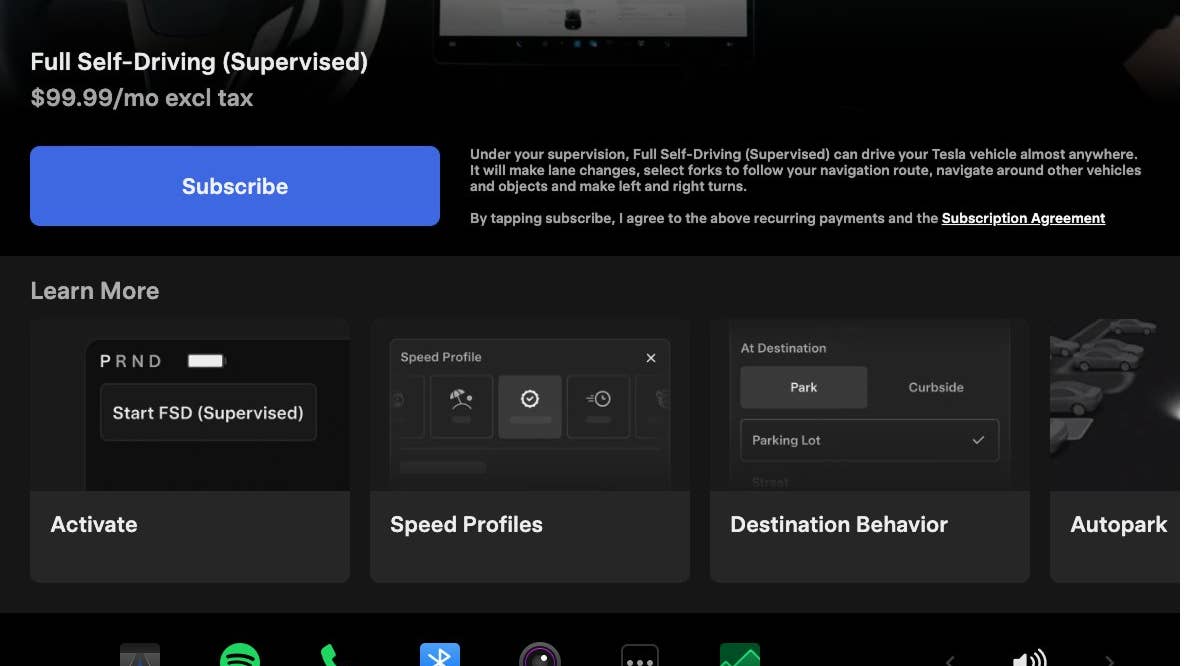
Most owners will spot the biggest changes right away. The Self-Driving app for AI4-equipped cars now has a cleaner look, making it easier to manage Full Self-Driving subscriptions and see your usage stats at a glance.
Voice control gets a real upgrade, too. With the new 'Hey Grok' command, you can activate the assistant hands-free. Location-based reminders add a practical touch, letting you set prompts just by speaking, instead of digging through menus.
For safety and convenience, blind-spot warnings now use the cabin’s ambient lighting, making alerts easier to spot without adding extra clutter. They now record up to 24 hours of footage, and you can save important clips for later.
Some changes are more subtle but still handy. Weather maps now show rain and snow more clearly, plus recent precipitation history. Media controls get swipe gestures for queueing tracks, and rear passengers can finally use the navigation maps on supported screens – useful for longer drives.
Even small touches, like more options in Pet Mode (formerly Dog Mode), show that Tesla is still fine-tuning the experience in ways that matter to owners.

Tesla/X
Model-Specific Upgrades
Owners of the latest Model 3 and Model Y get a clear visual upgrade. The in-car graphics are sharper, and the new park scene makes the interface feel more modern and polished.
Those equipped with premium audio get the Premium Immersive Sound update, which now delivers music with greater depth and separation, no matter what you’re listening to.
Meanwhile, outgoing flagship Model S and Model X get a different kind of upgrade – one focused on personalization. Owners can now customize their in-car vehicle avatar with visual touches like wraps, window tints, and even license plates through the updated interface. It’s a small touch, but it shows how Tesla sees the interface as part of the car’s personality, not just a set of buttons.
There are still some gaps. Apple CarPlay is still missing, and automation features are only available in certain regions. Even so, the Spring Update 2026 is a good example of what Tesla does best: not just adding features, but quietly changing how the car feels to live with, one update at a time.
Tesla/X


There are no reviews to display.