



Rethinking How Drivers See Danger
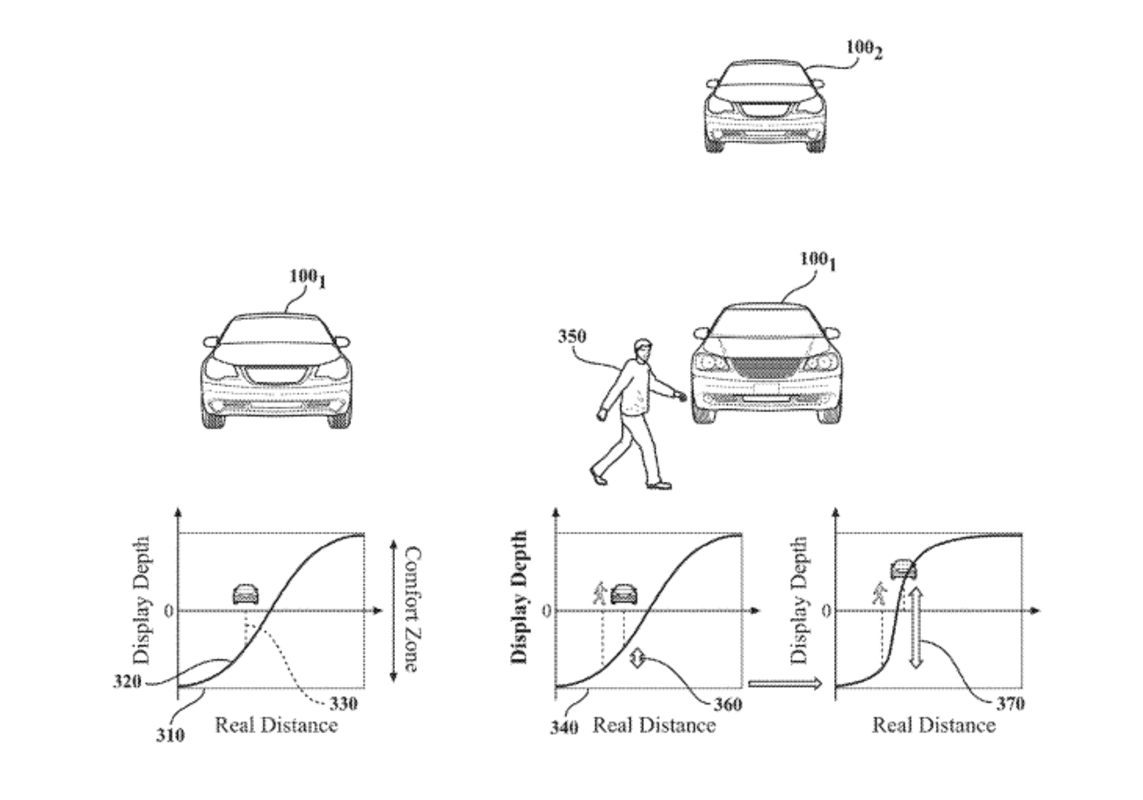
Head-up displays (HUDs) are everywhere now, showing speed, navigation, and safety alerts right on the windshield. While Ford is busy experimenting with all sorts of HUD ideas – some weirder than others – Toyota wants to take a different route to improving the tech. Instead of piling on more data, it wants to make what you see smarter. Its latest patent describes a system that changes how objects appear on the HUD, adjusting for actual distance and importance rather than flattening everything onto a single plane.
The logic is simple: Drivers instinctively judge distance just by looking ahead. But most displays flatten that sense, so a car far down the road can look just as close as a real hazard. Toyota wants to fix that by making the HUD match what’s actually risky in the real world.
Rather than throwing more flashing lights or louder alerts at the driver, this system quietly tweaks depth and layering so your eyes go where they need to, without extra noise.
USPTO
A Display That Understands Space
The patent was submitted in July 2024 but was published by the US Patent and Trademark Office (USPTO) only on January 8, 2026. You can look it up yourself using patent number 20260011716.
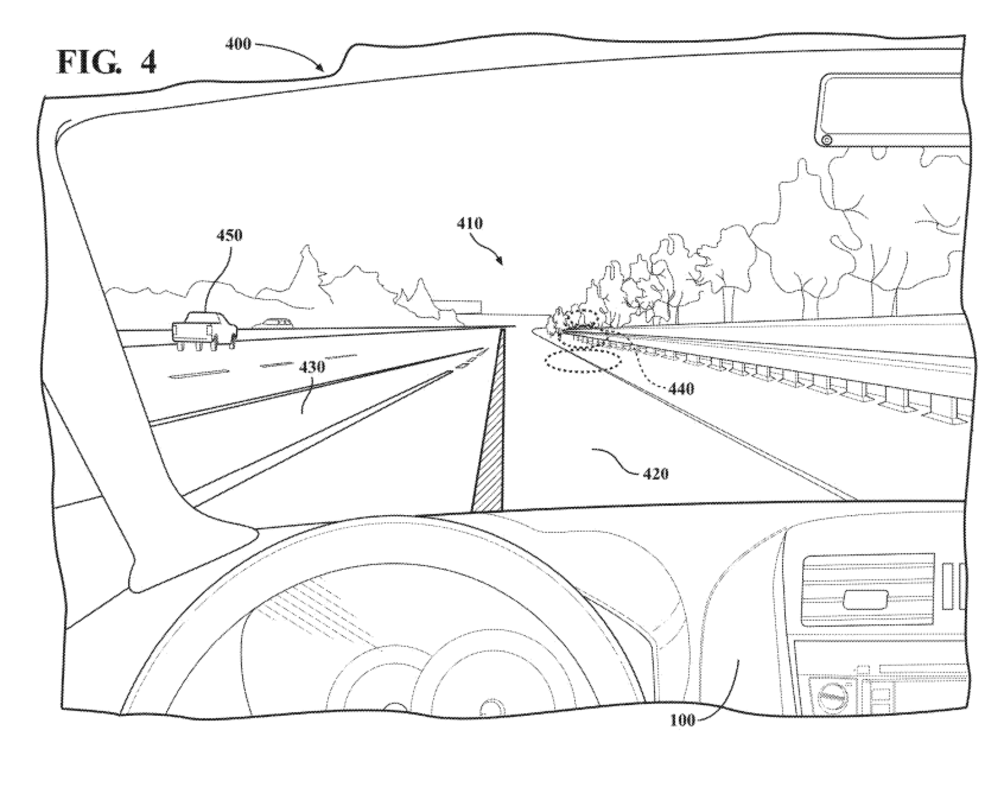
Toyota’s concept relies on the same sensor suite already found in many modern vehicles. Cameras, radar, lidar, and map data are used to detect vehicles, pedestrians, and other obstacles in the car’s field of view. Once detected, each object is assigned a position and importance based on distance, movement, and predefined safety parameters.
Here’s where it gets interesting. The HUD brings closer or more urgent objects forward, while less important stuff fades into the background. You end up with a display that feels layered and natural, almost like how your eyes already sort out what matters on the road.
Toyota also focused on making transitions smooth. As things get closer or farther, their position on the HUD shifts gradually, not suddenly. That way, you don’t get distracted by abrupt changes, even in heavy traffic or at speed.
USPTO
Very Useful for Everyday Driving
Toyota isn’t trying to take over for the driver or fill the windshield with graphics. The goal is to lighten the mental load by letting the HUD handle some of the sorting for you.
In the city, a pedestrian about to cross would pop out more than a parked car down the block. On the highway, a slowing car in front would quietly draw your focus without blaring warnings. The display isn’t just showing info – it’s tuned to what actually matters in the moment.
This is still just a patent, not a production feature yet, and as with other patents, it is not a guarantee that this will ever hit production. However, it lines up with Toyota’s usual focus on safety. If the company brings this to market, future HUDs could feel less like digital add-ons and more like a natural part of how you already see the road.
Pexels


There are no reviews to display.